

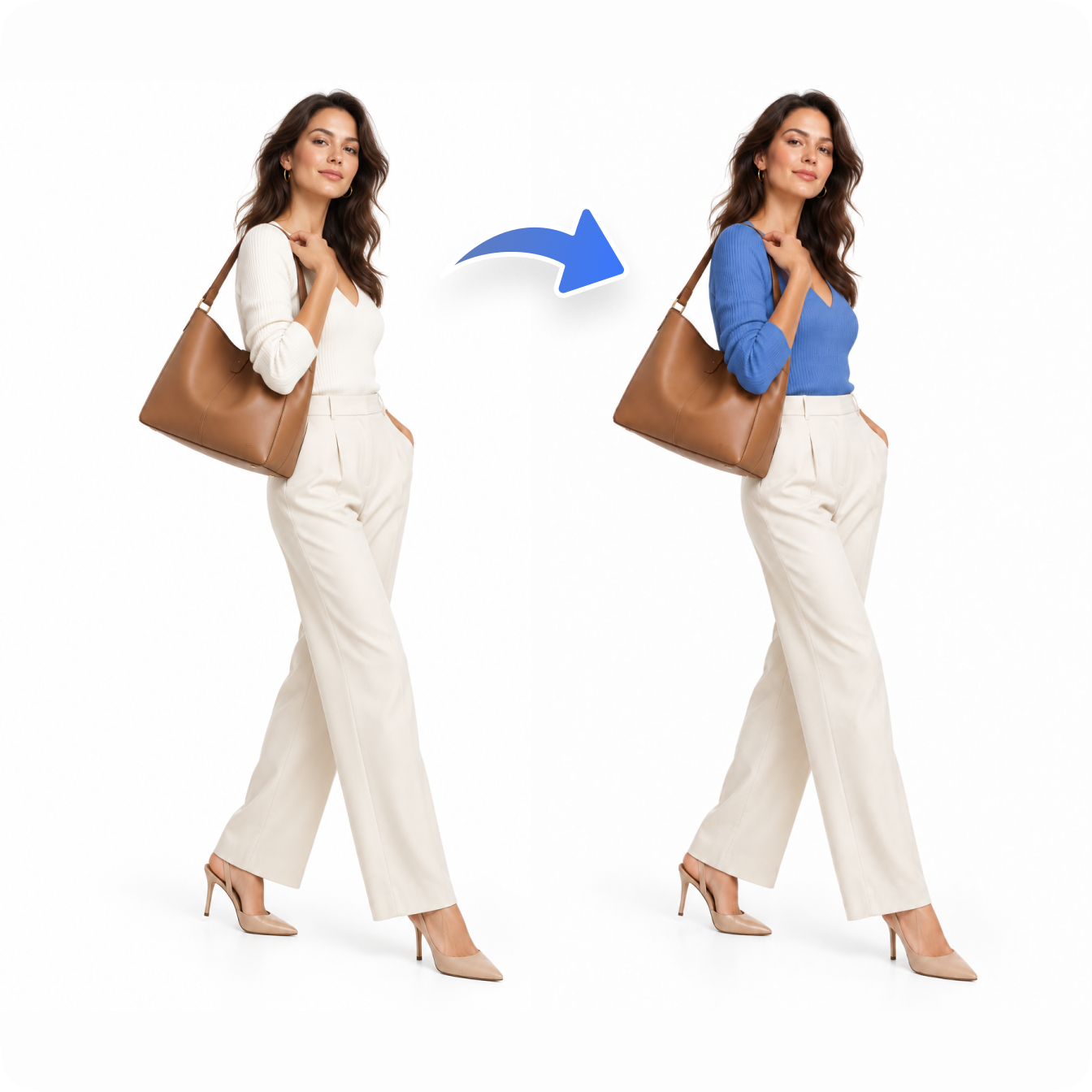
Try a new product detail
Brush a region and describe the material, color or object you want to try.
- Mark the area with an adjustable brush
- Add an optional replacement description
- Review the result and undo or continue editing
Redraw a region, preserve the rest

Brush the area you want to change, optionally describe a replacement, and export the generated result as PNG.
Step 1
Step 2
Step 3
Step 4
Local editing guides AI with the source image and a blue brush annotation, with continued editing and undo.
Brush a region and describe the material, color or object you want to try.
Redraw a selected part of a portrait or design without requesting a whole new composition.
| Input formats | JPG, PNG, WEBP; up to 20MB |
|---|---|
| Brush size | 1–100px; default 50px |
| Prompt | Optional, up to 200 characters |
| Processing | Remote AI with annotated references; unmarked pixels may vary |
| Output | PNG |
No. With no prompt, AI generates suitable new content based on the surrounding scene. A description lets you request a specific replacement.
The model is asked to preserve unmarked content, but reference-guided generation does not guarantee identical pixels outside the brush marks. Review the result before use.
Upload JPG, PNG or WEBP images up to 20MB and export the generated result as PNG.
The brush ranges from 1 to 100px, with 50px by default. Pan and zoom to mark small areas precisely.
Yes. Review the result, then undo, continue editing, or export PNG.
Upload an image, enhance its clarity, and export the result as PNG.
Upload an image, isolate the subject, and export a transparent PNG.
Adjust the crop and image position, then export a PNG.
Brush over unwanted objects, reconstruct the background with AI, and export PNG.
Upload an image, choose an expansion ratio and size, then extend the scene with AI and export PNG.
Explore all image generation, enhancement, and editing tools in Aibubu.