
E-Commerce
Clean Up Product Photos
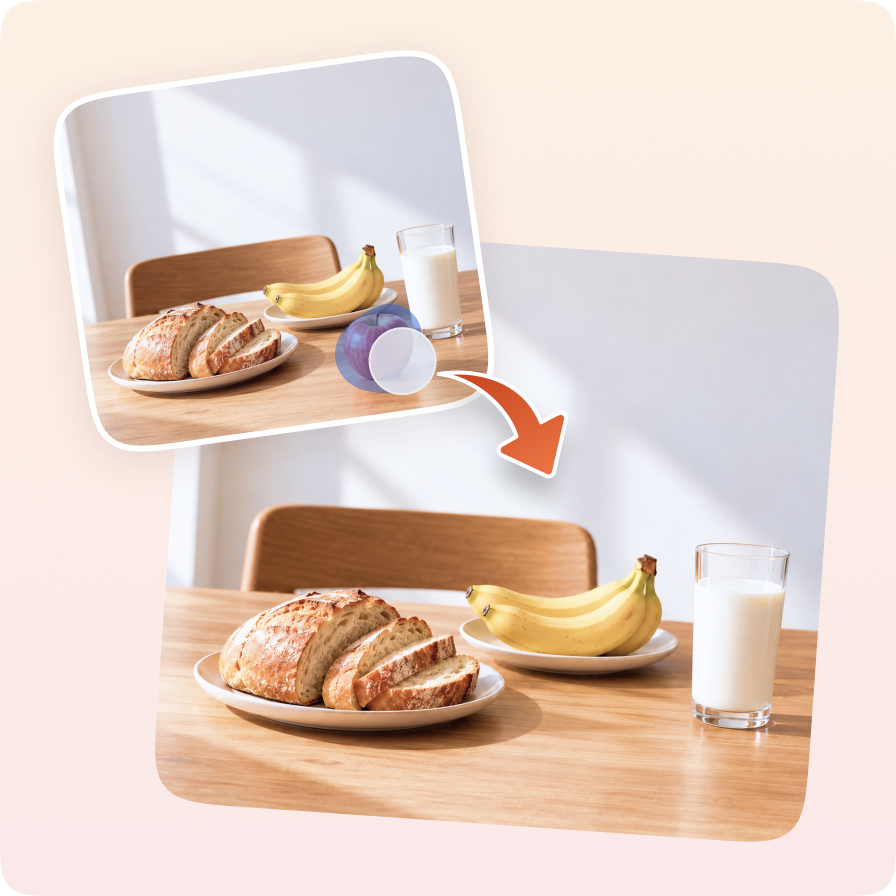
Remove distracting props from product photography before preparing your listing.
- Brush over unwanted objects
- Adjust brush size for small details
- Review the reconstructed background

 EraseErase
Remove unwanted elements with a natural finish
Brush over unwanted objects, reconstruct the background with AI, and export PNG.
Step 1
Step 2
Step 3
Step 4
The object remover uses brush annotations to guide AI removal and lets you continue editing the result.
Remove distracting props from product photography before preparing your listing.
Mark unwanted background elements so attention stays on your subject.
Remove unwanted elements from references and export a PNG for your creative workflow.
| Input formats | JPG, PNG, WEBP |
|---|---|
| Maximum file size | 20MB per image |
| Brush size | 1–100px; default 50px |
| Processing | Remote AI with annotated references |
| Output | PNG |
Upload JPG, PNG, or WEBP up to 20MB per image and export PNG.
Undo restores the image, brush annotations, brush size, mode, and view from immediately before the previous Start erasing action. Redo restores its result.
The source and annotated reference are uploaded for AI processing. Review the result; unmarked regions are not guaranteed to remain pixel-identical.
Upload an image, enhance its clarity, and export the result as PNG.
Upload an image, isolate the subject, and export a transparent PNG.
Adjust the crop and image position, then export a PNG.
Upload an image, choose an expansion ratio and size, then extend the scene with AI and export PNG.
Explore all image generation, enhancement, and editing tools in Aibubu.